
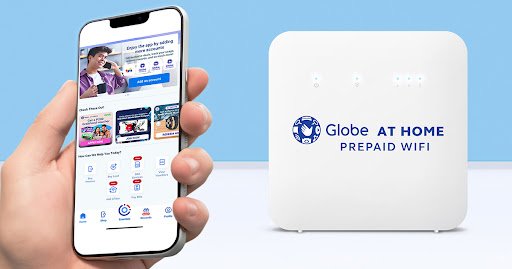
Keeping your home network secure is more important than ever. Your WiFi isn’t just a gateway to the internet; it’s a network that connects many of your personal devices. An unsecured or weakly protected network can expose your private information to unauthorized users. One of the simplest yet most effective ways to protect your digital life is by regularly changing your WiFi password.

This guide will walk you through the entire process of changing your Globe at Home WiFi password. We’ll cover how to access your router’s admin panel, find the right settings, and update your credentials. We will also provide solutions for common issues you might encounter along the way.
Why You Should Regularly Change Your WiFi Password
Your WiFi password is the main defense for your home network. Thinking of it as the front door key to your digital home helps put its importance into perspective. Here’s why you should get into the habit of changing it:
- Prevent Unauthorized Access: Over time, you might share your password with guests, neighbors, or service technicians. Changing it ensures only trusted individuals and devices can connect to your network.
- Enhance Security: Old or default passwords are often weak and can be guessed easily. Creating a new, strong password significantly reduces the risk of someone breaking into your network.
- Protect Personal Data: Many devices on your network—computers, phones, smart TVs—contain sensitive information. A secure WiFi connection helps protect this data from potential intruders.
- Improve Performance: Kicking unauthorized devices off your network can free up bandwidth, potentially improving your internet speed and connection stability.
Also Read:How to Call a Landline Using Globe (TM) SIM
Step-by-Step Guide to Changing Your Globe WiFi Password
Changing your password is a straightforward process. You just need a device connected to your Globe at Home network, like a laptop or smartphone.
Step 1: Connect to Your WiFi Network
Before you can change the settings, ensure the device you are using is connected to your Globe at Home WiFi network. You can do this via a wireless connection or by plugging a computer directly into the router using an Ethernet cable for a more stable link.
Step 2: Access the Globe Admin Dashboard
Your router’s settings are managed through a web-based interface called the admin dashboard.
- Open a web browser (like Chrome, Firefox, or Safari) on your connected device.
- In the address bar at the top, type
192.168.254.254and press Enter. This is the default IP address for most Globe at Home routers. - If that address doesn’t work, you can try
192.168.1.1. You can also find the correct IP address printed on a sticker on the back or bottom of your router.
Step 3: Log In to the Admin Panel
Once you enter the IP address, a login page will appear. You will need to enter the admin username and password for your router.
- For newer Globe at Home routers: The username and password are often found on the sticker at the back or bottom of your device. Look for “Admin Account” or similar labeling. The default username is typically
user, and the password is@[Globe-provided-string]. - For older models: Try the default combination of
userfor the username anduserfor the password. Another common combination isadminfor the username andadminfor the password.
If you have changed these credentials before and forgotten them, you will need to perform a factory reset on your router. See the troubleshooting section below for instructions.
Step 4: Navigate to the WiFi Settings
After logging in, you will see the admin dashboard. The layout may vary slightly depending on your router model, but the general steps are similar.
- Look for a menu option labeled “WLAN,” “Wireless,” or “WiFi Settings.” It is often located in the main navigation menu at the top or on the side.
- You may need to click on a sub-menu like “WLAN Basic Settings,” “Security,” or “Wireless Security.”
The goal is to find the page where you can see your WiFi network name (SSID) and the password (sometimes called “Pre-Shared Key,” “WPA Key,” or “Passphrase”).
Step 5: Change Your WiFi Password
On the wireless security page, you will see a field for your password.
- Locate the password field. You might need to click a “Show Password” checkbox to see your current password.
- Delete the old password and type in your new one.
- Click the “Apply,” “Save,” or “Submit” button to confirm the changes.
Your router will now save the new password and may restart. During this time, all devices connected to your WiFi will be disconnected.
Step 6: Reconnect Your Devices
Once your router is back online, you will need to reconnect all your wireless devices using the new password.
- On each device (phone, laptop, smart TV, etc.), go to the WiFi settings.
- Select your network name (SSID).
- Your device will prompt you to enter a password. Type in the new password you just created.
Repeat this for every device that needs to connect to your WiFi.
Troubleshooting Common Issues
Sometimes, things don’t go as planned. Here are solutions to a few common problems.
What if I Forgot My Admin Login?
If you can’t log in to the 192.168.254.254 admin dashboard because you’ve forgotten the username or password, the only solution is to reset the router to its factory settings.
Warning: A factory reset will erase all your custom settings, including your WiFi name and password, and restore them to the defaults printed on the router’s sticker.
- Find the “Reset” button on your router. It’s usually a small, recessed button that you need a paperclip or SIM ejector tool to press.
- While the router is powered on, press and hold the Reset button for about 10-15 seconds.
- The lights on the router will blink and then stabilize. This indicates the reset is complete.
- You can now log in to the admin dashboard using the default username and password found on the sticker.
What if I Can’t Connect After Changing the Password?
If a device won’t connect after you’ve changed the password, try these steps:
- Double-Check the Password: Typos are common. Carefully re-enter the new password, paying attention to uppercase letters, lowercase letters, numbers, and symbols.
- “Forget” the Network: On your device’s WiFi settings, select your network and choose the option to “Forget” or “Remove” it. Then, scan for available networks and try connecting again by entering the new password from scratch. This clears any old, saved credentials.
- Restart Your Device and Router: A simple restart can often resolve connection issues. Turn off your device and unplug your router from the power source. Wait for about 30 seconds, plug the router back in, wait for it to fully boot up, and then turn your device back on.
A Final Reminder on Password Security
Changing your password is a great first step, but creating a strong one is just as important. A strong password is your best defense against unwanted access. Follow these tips:
- Make it Long: Aim for at least 12 characters.
- Use a Mix: Combine uppercase letters, lowercase letters, numbers, and symbols (e.g., !, @, #, $).
- Avoid Personal Information: Do not use your name, birthday, address, or other easily guessable information.
- Be Unique: Don’t reuse passwords from other accounts, especially important ones like your email or banking.
- Keep it Private: Avoid writing your password down where others can see it.
By regularly updating your Globe at Home WiFi password to a strong and unique one, you take a significant step in securing your home network and protecting your digital privacy.
1 thought on “How to Change Your Globe at Home WiFi Password”