
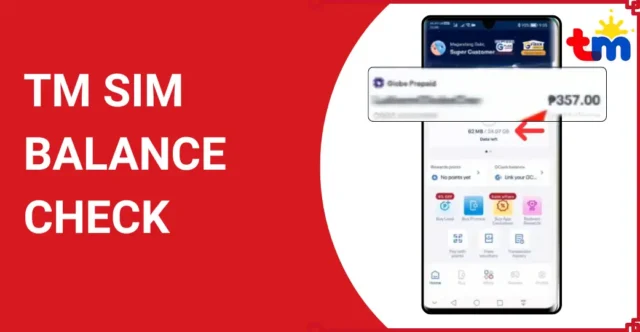
Staying connected is a necessity, not a luxury. Whether you need to send an important text, make an urgent call, or just scroll through social media during your commute, running out of load at the wrong moment is frustrating. For Touch Mobile (TM) subscribers, keeping track of your remaining balance is the easiest way to ensure you never face that sudden disconnection.
This guide will walk you through every method available for a TM balance inquiry. We will cover the quick USSD codes, the convenient mobile apps, and other helpful tricks to keep you connected without interruption.
Why Keeping Track of Your Load Matters
Before we dive into the “how-to,” let’s quickly talk about the “why.” You might think checking your balance is just about knowing how much money you have left, but it’s actually about managing your digital life better.
Regularly checking your TM balance helps you:
- Avoid Service Interruptions: There is nothing worse than being cut off in the middle of a call. Knowing your balance helps you top up before you hit zero.
- Monitor Promo Expiry: Many users lose load because they forget their promo has expired, and their data usage starts eating into their regular load.
- Budget Better: Seeing how fast your load depletes gives you insight into your usage habits, helping you choose better promos in the future.
Now, let’s explore the simple ways you can perform a balance inquiry on TM.
Method 1: Using USSD Codes (The Fastest Way)
The most reliable method for checking your load doesn’t require an internet connection or a smartphone. USSD (Unstructured Supplementary Service Data) codes work on any phone, from the latest iPhone to a basic keypad phone. It is fast, free, and works instantly.
Step-by-Step Guide:
- Open your phone’s Dialer or Phone app.
- Type
*143#on the keypad. - Press the Call or Send button.
- Wait for a menu to pop up on your screen.
- Look for the option labeled “Balance Inquiry” or “My Account” (this is usually option 7 or a similar number depending on current menu updates).
- Reply with the corresponding number.
- You will receive a notification on the screen or a text message detailing your remaining load and promo balance.
Pro Tip: This service is free of charge. You can use it as many times as you like without worrying about deduction from your load.
Method 2: The GlobeOne App (The Modern Way)
If you use a smartphone and have access to data or WiFi, the GlobeOne app is the best tool for managing your account. TM is powered by Globe Telecom, so TM subscribers use the GlobeOne app for account management. This app gives you a visual dashboard of your load, data usage, and points.
How to Set It Up:
- Download the App: Go to the Google Play Store (for Android) or the Apple App Store (for iOS) and search for GlobeOne.
- Register: Open the app and enter your 10-digit TM mobile number.
- Verify: You will receive a One-Time Password (OTP) via SMS. Enter this code into the app to verify your identity.
- Create a PIN: Set up a 4-digit PIN for security.
How to Check Your Balance:
Once you are logged in, checking your balance is effortless.
- Open the GlobeOne app.
- Your Load Balance will be displayed prominently on the main dashboard.
- To see details about your active promos (like remaining data or call minutes), tap on the account details or “View Details.”
Using the app is great because it often provides exclusive promos and rewards that aren’t available through USSD codes. Plus, seeing a visual bar graph of your data usage helps you understand exactly how much internet you have left.
Method 3: Text Inquiry (The Old School Way)
Sometimes, the USSD menu can be slow, or you might not have the app installed. In these cases, a simple text message can do the trick. While this method has evolved over the years, it remains a viable backup option for many users.
Instructions:
- Open your Messages app.
- Create a new message.
- Type
BALorDATA BAL(to check specific data promos). - Send it to
8080. - Wait for a reply from TM. You will receive a text message shortly containing your load status, promo validity, and remaining freebies.
Note: While generally free, ensure you have at least a peso balance to initiate SMS transactions just in case network policies change.
Also Read:Keep Your Number: A Guide to SIM Card Replacement
Method 4: SIM Menu (For Basic Phones)
Every TM SIM card comes with a built-in menu embedded in the chip itself. This is often overlooked but serves as a reliable way to check your status.
How to Access It:
- Look for an app icon on your phone named “SIM Toolkit” or “TM Menu.”
- Open it and select “Balance Inquiry” or “Account.”
- Follow the prompts.
- You will receive your balance details via SMS.
This method is particularly useful if you are having trouble memorizing USSD codes.
Troubleshooting Common Issues
Even simple technology can have hiccups. If you are trying to check your TM balance and it isn’t working, don’t panic. Here are some common problems and how to fix them.
“Invalid MMI Code” Error
This usually happens when there is a weak signal or a network glitch while using the USSD code (*143#).
- Fix: Turn on Airplane Mode for 10 seconds, then turn it off to refresh your network connection. Try dialing the code again.
No Reply from 8080
If you sent a text and didn’t get a response, the network might be congested.
- Fix: Wait 5 to 10 minutes. If there is still no reply, try the USSD method (*143#) instead, as it uses a different signaling channel than SMS.
App Won’t Load
If the GlobeOne app is crashing or showing a blank screen:
- Fix: Check your internet connection. The app requires data or WiFi to work. If your connection is fine, try clearing the app cache in your phone settings or reinstalling the app.
SIM Registration Issues
Since the implementation of the SIM Registration Act, unregistered SIMs may face deactivated services.
- Fix: Ensure your SIM is registered. If you haven’t registered your SIM yet, you may be barred from checking balances or using services until you comply with the registration requirements.
Managing Your Load: Best Practices
Knowing how to check your balance is step one. Managing it effectively is step two. To get the most out of your TM experience, consider these tips.
Register for Promos Immediately
Don’t leave regular load sitting in your account if you intend to use data. Background apps can consume regular load at a standard rate (P5 for 15 minutes), which drains your balance rapidly. As soon as you load up, register for your preferred promo immediately.
Use “SurfAlert”
This is a lifesaver for TM users. SurfAlert puts your browsing on hold if your registered promo expires, preventing your regular load from being eaten up by unexpected data charges.
- To activate: Text
SURFALERT ONto8080.
Check Before You Call
Before making a long call, do a quick USSD check. It takes five seconds and saves you the embarrassment of the call dropping mid-conversation.
Conclusion
Checking your TM balance is a simple habit that saves you from inconvenience and wasted money. Whether you prefer the speed of the *143# USSD code, the visual dashboard of the GlobeOne app, or a simple text to 8080, TM provides multiple avenues to keep you informed.
By staying on top of your load balance and monitoring your usage, you ensure that you are always ready to connect, whether for work, school, or keeping in touch with loved ones. Don’t wait until your messages stop sending—do a quick balance inquiry today.